

MP4 Player Online: How to Choose the Right Tool
A confidential rough cut should not have to leave your laptop just so you can check whether it plays. A public CDN URL, on the other hand, needs a player that can reveal whether the stream, browser, or delivery path is causing the problem.
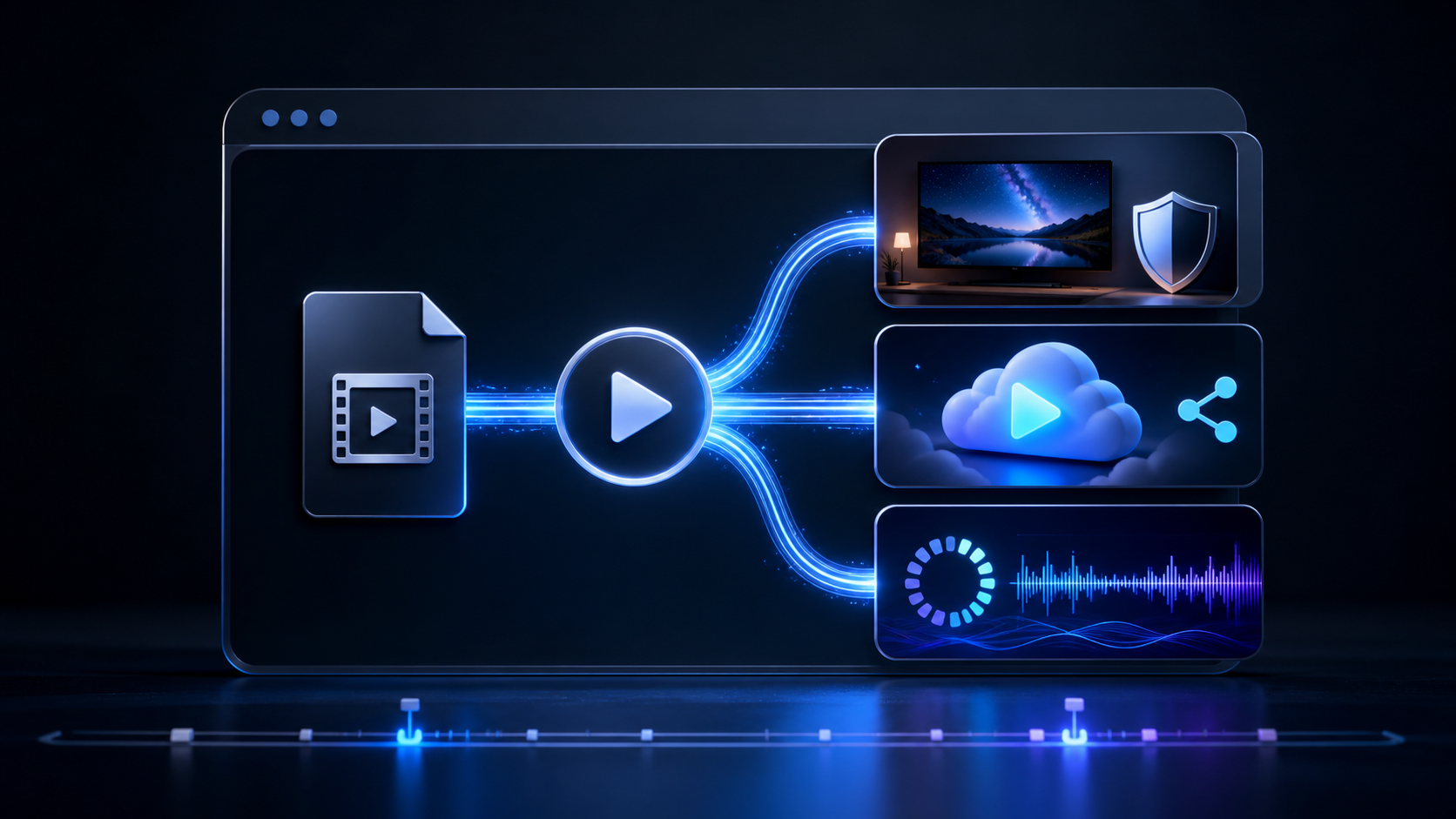
An MP4 player online is a browser-based tool that opens a local MP4 file or plays one from a URL without requiring a desktop installation. Choose local browser playback for a private file, an upload-based player when you need sharing or editing, and a diagnostic player when you need to test a production video URL.
That distinction matters more than a long feature list. The right tool is the one that handles your input safely and proves what you actually need to know.
What an MP4 player online actually does
Most online players rely on the browser's native media capabilities. The HTML <video> element provides playback, seeking, volume, fullscreen, and other controls; the surrounding service decides how your file reaches that player and what happens next.
There are three common models:
| Player model | What you provide | Where the video comes from | Best use |
|---|---|---|---|
| Local browser player | A file on your computer or phone | Your device | Private viewing and quick compatibility checks |
| Upload-based player | A file transferred to the service | The service's storage or processing system | Sharing, embedding, trimming, or collaboration |
| URL or stream tester | A direct MP4, HLS, or DASH URL | Your server or CDN | Delivery checks and playback troubleshooting |
These models can look almost identical on screen, but they have different privacy, retention, and diagnostic implications. “Choose file” does not by itself tell you whether the file stays local or uploads to a server; read the tool's explanation and privacy terms before using sensitive footage.
MP4 is a container, not a single video codec
An .mp4 extension describes a container that can hold video, audio, captions, and metadata. It does not guarantee that every browser can decode the tracks inside it. MDN's web video codec guide lists several codecs that can be carried in MP4, including H.264/AVC, HEVC, AV1, VP9, and MPEG variants.
That is why one MP4 may open instantly while another file with the same extension fails. The player, browser, operating system, hardware decoder, video codec, audio codec, and encoding profile all participate in the result.
Choose an MP4 player online by task
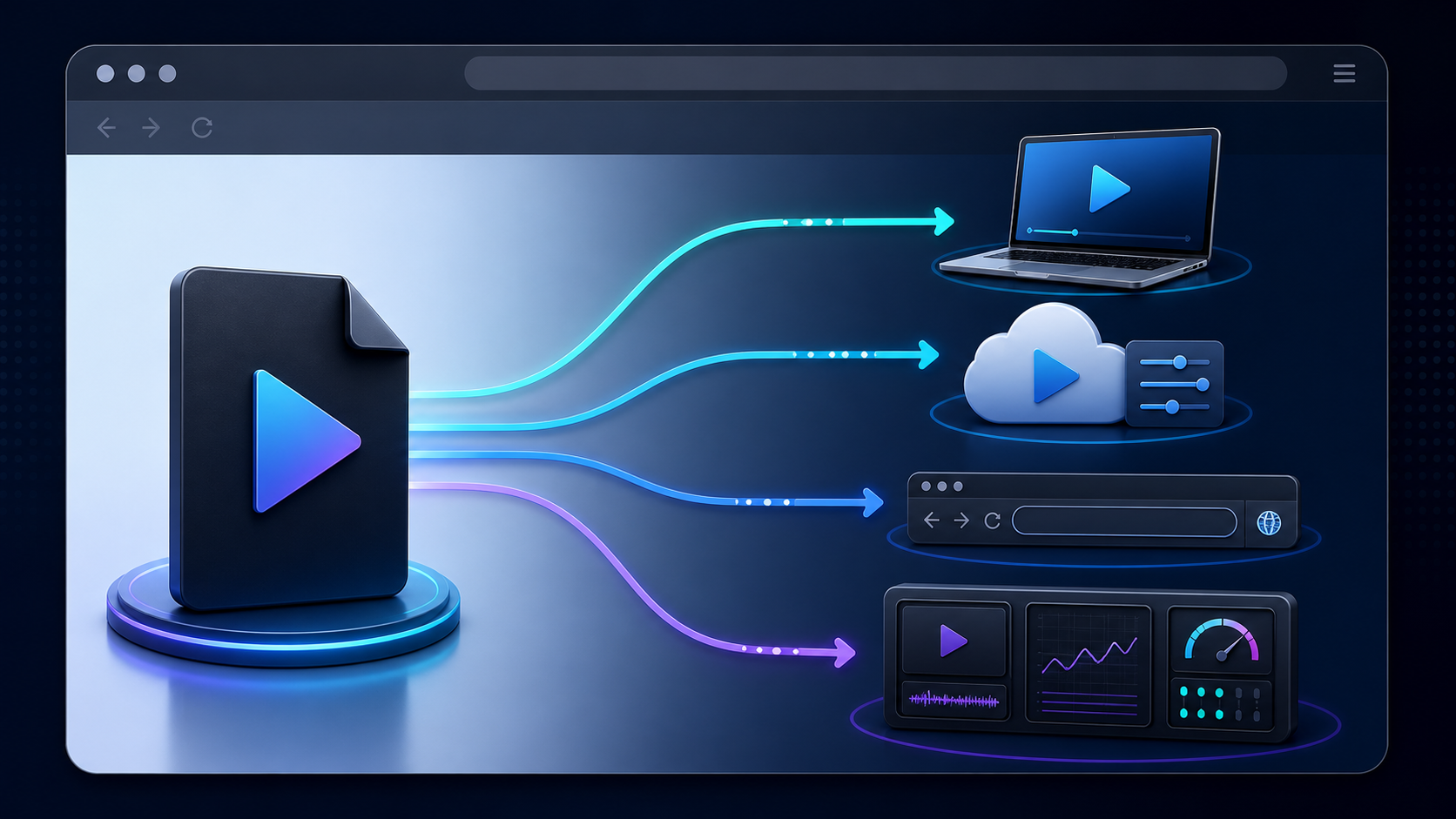
Search results mix simple file viewers with upload-and-share products and engineering test players. There is no universal winner because each category answers a different question.
For private local playback: MP4.to or LiveReacting
Use a local player when your only goal is to open a file without installing an app or transferring the asset to another service. MP4.to says its playback tool handles the file locally in the browser and does not transfer it to its servers. LiveReacting's browser player similarly says a chosen local file is not uploaded or stored.
Those are vendor descriptions, not independent security audits. For confidential client footage, unreleased content, or personal video, confirm the provider's policy and obtain any approval your organization requires before selecting a tool.
For sharing, embedding, and light editing: Jumpshare
An upload-based workflow makes sense when playback is only the first step. Jumpshare's MP4 viewer uploads files, creates a viewable result, and promotes embedding, trimming, calls to action, and custom thumbnails. Its free-tool page states a 1 GB MP4 limit, two MP4 uploads per day, and deletion after 24 hours for files uploaded without an account.
That convenience means the file is transferred and processed. Check the latest limits, retention rules, account behavior, and sharing permissions before uploading material that should not become link-accessible.
For a playback-to-edit workflow: Video Candy
Video Candy's online player places playback beside tools for trimming, merging, cropping, changing speed, converting, and other edits. It is a practical category when you know the next action is a quick edit rather than simply verifying compatibility.
Do not assume an editor preserves the original file or metadata. Keep the source, then inspect the exported resolution, frame rate, audio, and compression before treating the result as final.
For testing a direct MP4 URL: LiveReacting
A URL player is useful when a remote file works for one person but not another. LiveReacting accepts a direct video URL or local file, offers speed and caption controls, and documents common failures such as a broken link, a host that blocks external playback, or an unsupported codec.
This is a stronger test than downloading the file and opening it locally because it exercises the remote delivery path. It is still a basic playback check, not a full CDN or adaptive-stream analysis.
For production stream diagnostics: Livepush
When the question is “why are viewers buffering?”, a play button is not enough. Livepush's test player accepts public MP4, HLS, and DASH URLs and exposes active bitrate, resolution, bandwidth estimate, buffer health, dropped frames, and detected renditions.
That makes it more appropriate for engineering triage than a consumer file viewer. Treat the values as one browser session's evidence, then confirm the result on the target devices and networks.
| Your immediate goal | Player category to start with | Critical check |
|---|---|---|
| Watch a private file once | Local browser player | Explicit no-upload behavior |
| Send a viewable link | Upload-and-share player | Access, expiry, and deletion controls |
| Trim or convert after viewing | Player with editing tools | Export quality and file limits |
| Test a remote MP4 | Direct-URL player | Direct media URL and server access |
| Diagnose an OTT stream | MP4/HLS/DASH diagnostic player | Buffer, bitrate, renditions, and errors |
How to choose an MP4 player online
Start with the decision that would be costly to get wrong.
1. Decide whether the file may leave your device
If the answer is no, restrict the shortlist to tools that explicitly perform local browser playback. If uploading is acceptable, check who can access the result, how long the service retains it, how deletion works, and whether an account changes those rules.
Avoid using a vague “secure” badge as the entire assessment. Transport encryption can protect a transfer while the file is moving, but it does not answer who stores it, how long it remains, or whether a link is public.
2. Match the input method to the job
A local-file picker is ideal for a one-off check. A direct-URL field is better for testing a hosted asset. Uploading is useful when you need processing or a shareable link, while an HLS/DASH input is necessary when the real product uses adaptive streaming rather than a single progressive MP4.
3. Check codec compatibility, not only the extension
If you know the codecs, test the precise MIME type and codec string across target browsers. The browser method canPlayType() can return probably, maybe, or an empty string for a given media type, but real playback remains the decisive test.
For the broadest practical evaluation, use the same file on current Chrome, Safari, Firefox, and Edge, then test the phones, TVs, or embedded devices your audience actually uses. A successful desktop test does not certify every platform.
4. Verify the controls you need
Basic play, pause, seek, volume, and fullscreen may be sufficient. Review work can require frame stepping, playback speed, picture-in-picture, or keyboard controls. Accessible delivery may require selectable captions; the HTML <track> element supports timed WebVTT tracks for captions, subtitles, descriptions, chapters, and metadata.
5. Read limits before moving a large file
Check maximum file size, daily use, supported duration, processing time, watermark rules, export resolution, and whether registration is required. These terms can change, so verify them on the service page at the time of use rather than relying on an old roundup.
Why an MP4 file may not play in a browser
A failed play attempt does not automatically mean the file is corrupt. Isolate the cause systematically.
The video or audio codec is unsupported
The container may be valid while one track uses a codec or profile the browser cannot decode. Inspect the file with a media-analysis tool, then try a known-compatible encode. Do not rename the extension; transcoding changes the encoded media, while renaming does not.
The URL is a web page, not the media file
Share links often open an HTML page instead of returning the MP4 resource. A URL player generally needs a direct, reachable media address. Expired authorization, server restrictions, or blocked cross-origin access can also stop a remote file from loading.
The file is incomplete or damaged
Compare the file size with the source, download it again, and test a second known-good player. If every player fails at the same point, the asset or transfer is a stronger suspect than the browser UI.
Autoplay is being blocked
If a file loads but does not start automatically, click play before diagnosing the encode. Browsers commonly restrict audible autoplay; MDN's autoplay guide notes that muted or inaudible media is treated differently and that prior user interaction can affect permission.
The player proves playback, not delivery quality
A local MP4 can play perfectly while the hosted experience buffers because the CDN, server, connection, or stream packaging differs. Reproduce the viewer's route: test the remote URL, browser, device, network, and—when relevant—the adaptive manifest.
When a free online MP4 player is not enough
A free player is well suited to a file check, quick share, or isolated URL test. It is not a substitute for a production playback stack that needs authentication, subscriptions, advertising, analytics, adaptive bitrate streaming, DRM, content entitlement, captions across locales, and consistent behavior on web, mobile, and connected TV.
For an OTT service, use a single MP4 as a source or fallback where appropriate, then package adaptive renditions and validate switching behavior. Our adaptive bitrate streaming guide explains how multiple renditions protect playback as bandwidth changes, while the secure streaming guide covers the wider protection model beyond a player control.
If you need a branded multi-device experience rather than a one-off viewer, Apexnova engineers production-ready OTT platforms across web, iOS, Android, and connected TV, including player integration, adaptive delivery, DRM, analytics, and monetization. That is the point where the decision shifts from choosing a browser utility to designing and testing the complete playback system.
An app video player for Android is also a different product category. Installed video player apps for Android may support offline libraries, background playback, hardware decoding controls, casting, and deeper device integration; our native Android video player guide covers the implementation choices behind that experience.
A five-minute MP4 playback test
Use this repeatable sequence before changing the file:
- Preserve the original and work from a copy.
- Decide whether the test must remain local or exercise a remote URL.
- Open a known-good MP4 in the same player to confirm the tool itself works.
- Test the suspect file and record whether video, audio, seeking, captions, and duration behave correctly.
- Repeat on one different browser or device; for production delivery, test the actual remote MP4 or adaptive manifest and inspect buffer, bitrate, renditions, and errors.
The result should narrow the fault domain. “It does not play” becomes a useful finding only after you know whether the failure follows the file, codec, URL, browser, device, or network.
Frequently asked questions
Can I play an MP4 file online without uploading it?
Yes, if the tool performs local browser playback. Verify that the service explicitly says the file remains on your device; an upload-and-share player sends the file to its servers.
Why won't my MP4 play online?
The .mp4 extension identifies a container, not the codecs inside it. Playback can fail because the browser cannot decode the video or audio codec, the file is damaged, or a URL is not a direct accessible media resource.
Is it safe to use an MP4 player online?
It depends on how the tool handles the file. Prefer local browser playback for confidential footage; before using an upload-based service, review its privacy policy, retention period, file limits, and deletion controls.
Can I play an MP4 from a URL?
Yes, if the player accepts URLs and the address points directly to an accessible MP4 resource. A share page, expired link, blocked cross-origin request, or unsupported codec can prevent playback.
Is an online MP4 player the same as an Android video player app?
No. An online player runs in a browser and is convenient for quick checks, while an Android video player app is installed and may offer offline libraries, background playback, hardware controls, and broader device integration.
Conclusion
Choose from the input and the outcome: local playback for privacy, upload-based tools for sharing or editing, URL players for remote checks, and diagnostic players for production streams. If the video serves paying viewers across devices, move beyond “does it open?” and evaluate the complete codec, delivery, security, analytics, and playback system.